

Cyver Core’s narrative pentest reporting engine is designed to let your pentest team produce beautiful, client‑ready reports in a fraction of the time. A key part of that engine is report tokens—placeholders that automatically pull data from your project into the report. In the past these tokens were mostly static: you could drop {Client_Name} or {Scope} into a template and the data would appear. With the new Dynamic Report Tokens we’re taking automation to the next level—giving pentesters full control over what the token returns and how it is displayed.
What makes tokens “dynamic”?
Traditional tokens insert whatever data is linked to them. Dynamic tokens let you configure parameters on the token to tailor the output. When you insert a dynamic token into a report template you’re presented with a simple builder to choose which fields to show, how to sort and group the data, which filters to apply and even how to format the output. The token then generates the content based on those settings every time you generate a report.
This flexibility is important because no two pentest projects are the same. Some clients want detailed tables, others prefer charts, and others only need high‑level counts. Dynamic tokens let you deliver exactly the data you need without rewriting the template or manually editing the report. The result is a report that reflects your methodology and brand. Cyver emphasises that with the platform you can build report layouts to match your methodology, brand them fully and use dynamic tokens to autopopulate findings, evidence and more.
How dynamic tokens work
At a high level, dynamic tokens follow a simple workflow:
-
Insert the token into a report template. Tokens are written inside curly braces, e.g.,
{Finding_Details}or{Finding_Counter}. -
Open the token’s configuration. In the report editor you can click the token to open a dialog. Here you choose which fields to show (e.g., title, severity, risk score), filter by severity or status, group by asset or category, and select a display type such as table, chart or paragraph.
-
Preview and save. After configuring the token you can preview the output with data from your current project. When you’re happy with the result, save the token. The report will now generate live content whenever it’s created.

Behind the scenes, Cyver’s reporting engine treats findings as "tickets". Findings and evidence are uploaded to the project and the dynamic tokens pull them into the report. The automation pipeline fills report sections with live data so that the report is always up to date and completely editable According to Cyver, tokens allow you to customise every part of the report and cut report‑writing time dramatically—users report that 50–80 % of a report can be generated instantly when they combine dynamic tokens with their vulnerability libraries.
Types of dynamic tokens
Cyver currently offers several dynamic tokens to cover different reporting needs. Each token supports parameters for filtering, sorting and formatting:
-
{Finding_Details}– Inserts a block of vulnerability information. You can choose which fields to show (e.g., title, description, asset, risk score), whether to include remediation steps and references, and whether to show labels and attachments. Use it to create fully customised vulnerability narratives in your report. -
{Finding_Counter}– Outputs counters for findings. You can count findings by severity (critical, high, medium, low, informational), by status (open, validated, retesting, closed) or by asset. Options include displaying the total count, grouping counts (e.g., one column per severity) and including percentages. Counters are perfect for executive summaries or heat‑map overviews. -
{Finding_Chart}– Generates charts. You can choose between bar charts, pie charts or donut charts and specify what to chart (e.g., number of findings per severity, per asset or per category). Sorting and colour schemes are customisable to match your template. Charts automatically adjust to the current data in the project. -
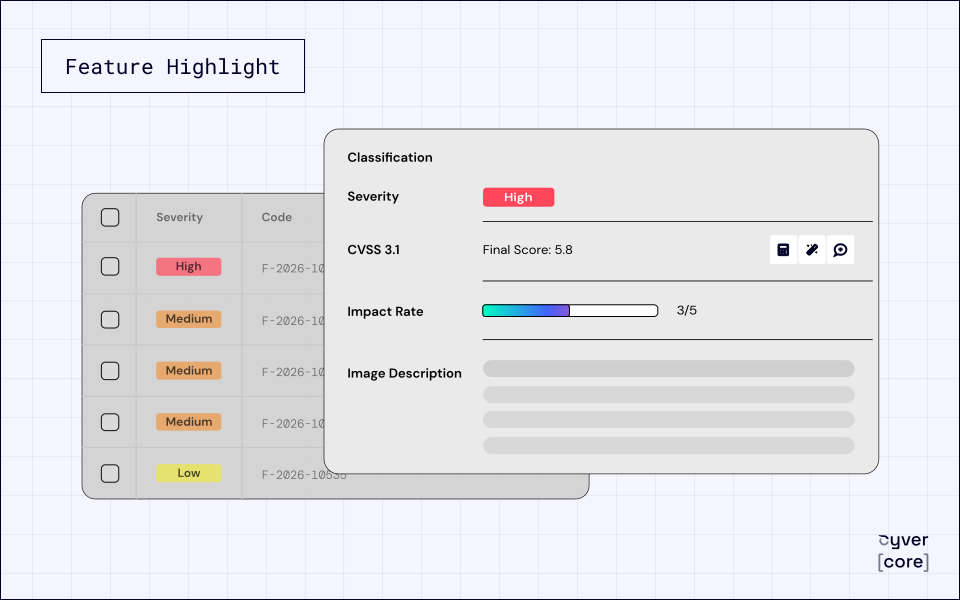
{Finding_Table}– Displays findings in a grid. You can configure which columns to include (title, severity, asset, status, CVSS score, labels, etc.), how to sort the rows and whether to group by asset or category. Filtering options let you include only certain severities, statuses or labels. The table respects your report’s styling. -
{FindingEvidence_Table}– Similar to{Finding_Table}but specifically for evidence. It shows evidence items (e.g., screenshots, log extracts) attached to findings. You can choose whether to show the associated finding title, the description of the evidence, file names and upload dates. This token makes it easy to include supporting material for each vulnerability. -
{AttackChain_Details}– Inserts details of attack chains. Attack chains are sequences of exploits or vulnerabilities leading to a breach. With this token you can list each link in the chain, show descriptions, impacts and remediation steps. Filters allow you to select only complete chains or chains affecting certain assets.
These are just the primary tokens—Cyver continues to add new dynamic tokens for quotes, methodologies, test descriptions and other report elements. You can also combine tokens in creative ways: for example, insert a {Finding_Counter} above a {Finding_Table} to give a quick overview before the full listing.
Benefits of dynamic report tokens
Time savings and consistency. Automating reports with dynamic tokens means less manual work and fewer errors. Cyver notes that without automation reports can take one or two full days to complete, but with the platform’s automation—including tokens—users cut that down to a few hours. Because the data is pulled directly from your project, you avoid copy‑paste mistakes and ensure accuracy.
Full customisation. Dynamic tokens let you tailor each report to the client. You decide what data appears and how it’s formatted. This flexibility supports both high‑level management summaries and detailed technical appendices. Cyver emphasises that reports can be fully branded—from CSS to background images—and tokens can autopopulate findings, evidence and more.
Reusable templates. Once you’ve configured a token, you can reuse it across report templates. This means you spend less time setting up new reports. Since the parameters are saved, the same token will produce the correct output for any project, ensuring consistency across your reports.
Enhanced narrative flow. Tokens can be placed anywhere in the report. By combining counters, charts, tables and detailed write‑ups, you can structure reports that tell a coherent story about the assessment. Use counters and charts in the executive summary, tables in the main body and attack chain details in the technical appendix.
Getting started
Dynamic report tokens are available now in Cyver Core. To start using them:
-
Update your report template. Open an existing template or create a new one. Navigate to the section where you want to insert data and type the token name (e.g.,
{Finding_Details}). -
Configure the token. Click the token to open the configuration dialog. Select the fields, filters and formats you want. Preview the output and adjust until it matches your needs.
-
Generate your report. When you create a report for a project, Cyver will populate each token with live data based on your configuration. You can regenerate the report at any time and the token will update automatically.
If you’re already using Cyver’s narrative reporting features, adding dynamic tokens is a natural next step. They integrate seamlessly with other features like text blocks, section libraries and GenAI writing aids. For new users, a free trial is available to explore the platform.
Conclusion
Dynamic report tokens transform how you generate pentest reports. Instead of one‑size‑fits‑all templates, you can craft flexible, branded documents that automatically pull the right data for each client. Tokens fill sections with live data, reduce manual work and let you focus on the analysis that matters. Whether you need counters for an executive overview, charts for trend analysis or detailed tables for remediation, dynamic tokens give you the control you need. Try them in your next report and see how much time you save!